Profile Transform
The Profile Transform creates a new profile based on the coordinate system of geometric features the tool uses as input and/or fixed input values. The tool accepts a Line geometric feature (rotating the profile so that the line is parallel to the X axis) and/or a Point geometric feature (using it as the X and Z origin).
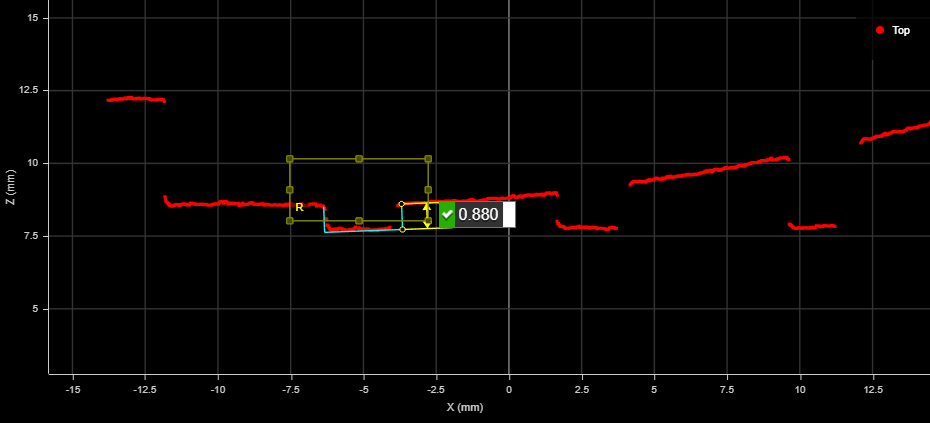
For example, in the following, if you want to measure the characteristics of the first groove on the left, you can use the tool to rotate the profile.
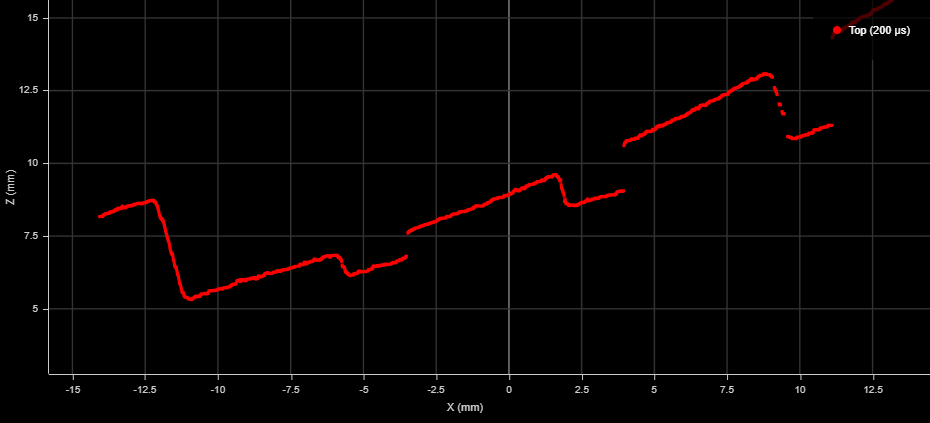
First, a Profile Line tool is added and configured on the bottom of the groove. The tool is configured to output a line geometric feature.
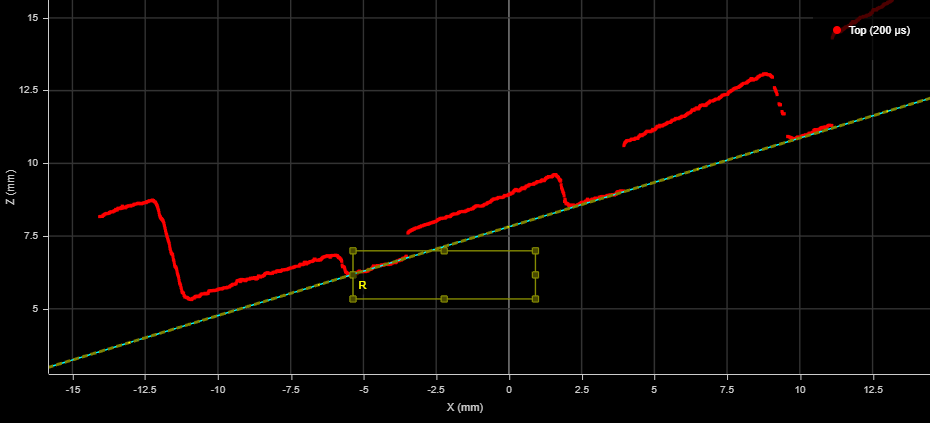
A Profile Transform tool takes the line geometric feature as input, and the transformed profile from that tool is used as input for a Profile Groove tool, which measures the groove's characteristics:
For information on adding, managing, and removing tools, as well as detailed descriptions of settings common to most tools, see Tool Configuration.
Inputs
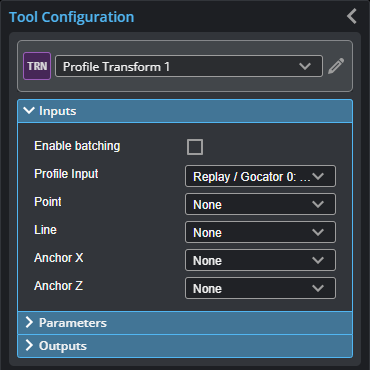
You configure the tool's inputs in the expandable Inputs section.

|
To use a measurement as an anchor, it must be enabled and properly configured in the tool providing the anchor. For more information on anchoring, see Measurement Anchoring. |
| Name | Description |
|---|---|
| Enable Batching |
For more information on arrays, batching, and aggregating, see Arrays, Batching, and Aggregation. |
|
Profile Input |
The data the tool applies measurements to or processes. |
|
Point |
The Point geometric feature the tool uses to offset a profile to an X and Z origin of 0. |
|
Line |
The Line geometric feature the tool uses to position (X and Z) and to rotate a profile Y rotation). |
|
Anchor X or Anchor Z |
The X or Z measurement of another tool that this tool uses as a positional anchor. Positional anchors are optional. |
Parameters
You configure the tool's parameters in the expandable Parameters section.
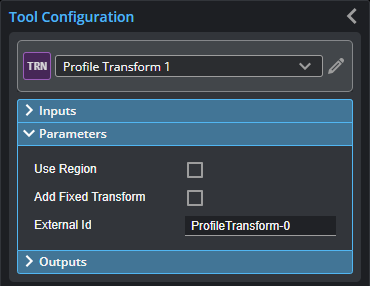
| Parameter | Description |
|---|---|
|
Use Region |
Whether the tool should limit the transformed profile that it outputs to a user-defined region. When enabled, the tool displays a Region parameter you use to define the region. If this option is not enabled, the tool transforms the entire profile. |
|
Region |
The region to which the tool's measurements will apply. For more information, see Regions. |
|
Add Fixed Transform |
Enables X Offset, Y Offset, and Angle parameters you can use to manually set a transformation. Useful if you know the profiles in the scan data will always be in a certain position or orientation. |
|
External ID |
The external ID of the tool that appears in GoHMI Designer. For more information, see GoHMI and GoHMI Designer. |
Outputs
All tools provide measurements, geometric features, or data as outputs.
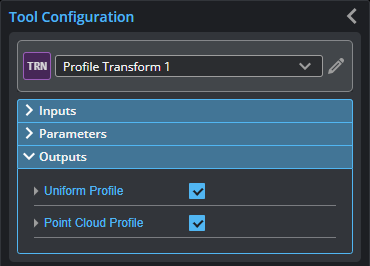
| Type | Description |
|---|---|
|
Profile Uniform Profile Point Cloud |
The transformed profile. The outputs will contain the same profile data, but the type (uniform vs. point cloud) will differ, so any Profile tool will be able to take this tool's output as input. |