Setting Up Halcon
Before using Halcon with a sensor, you must set up Halcon.
To set up Halcon:
| 1. | Connect a sensor to the PC running Halcon. |
You will need a Master hub to connect the sensor to the PC.
| 2. | Connect to GoPxL running either on a sensor or a PC using a web browser. |
By default, a sensor's IP is 192.168.1.10. If you have changed the sensor's IP, use that. If you can't find your sensor, see GoPxL Discovery Tool.
For more information on running GoPxL on a PC, see Running GoPxL on a Windows PC.
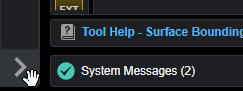
| 3. | In the GoPxL interface, expand the navigation bar on the left side of the interface. |
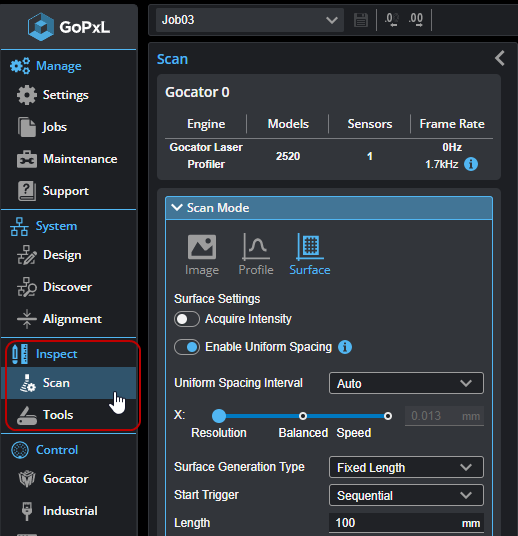
| 4. | Click the Scan page icon in the navigation bar on the left. |
| 5. | On the Scan page, click the Surface icon to switch to Surface mode. |
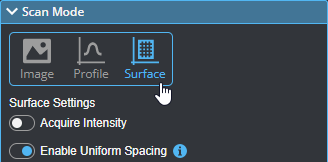
| 6. | (Optional) If you need intensity data, enable Acquire Intensity. |
| 7. | Configure the sensor to produce the desired surface data. |
For more information on configuring sensors, see Configuring Acquisition.
| 8. | Click the Gocator page icon in the navigation bar. |
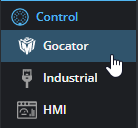
| 9. | On the Gocator page, enable the Gocator protocol. |
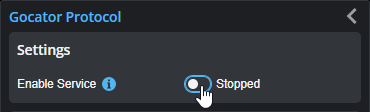
| 10. | In the Data to Send section, choose the surface you want to send to Halcon. |
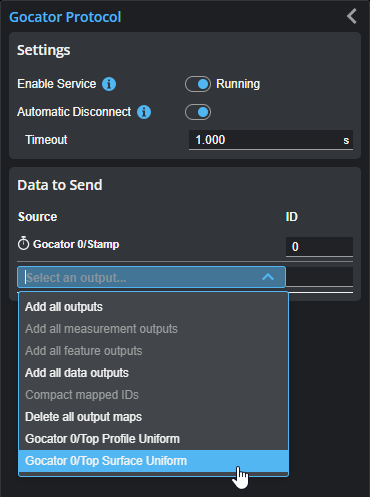
For more information on configuring Gocator output, Gocator Communication Protocol.
| 11. | Make sure the sensor is running. |
| 12. | On the PC, launch Halcon. |
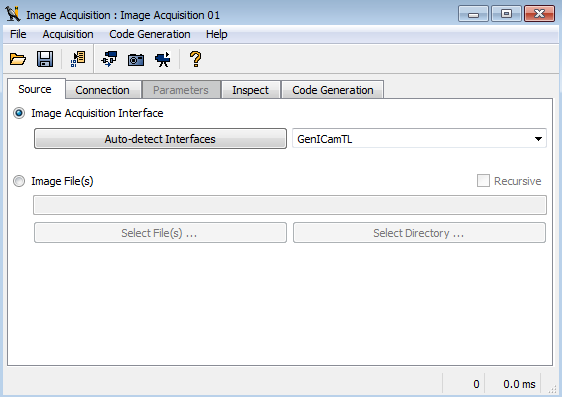
| 13. | In Halcon, in the Assistants menu, click Open New Image Acquisition. |
| 14. | In the dialog that opens, in the Source tab, check the Image Acquisition Interface option and choose GenICamTL in the drop-down. |

|
|
| 15. | Switch to the Connection tab. |
If Halcon detects a sensor, the sensor's IP will be listed next to Device.
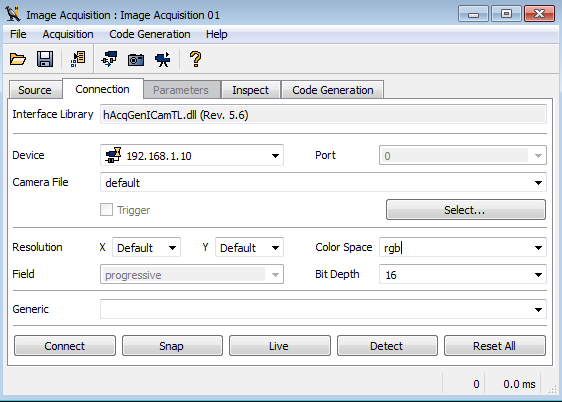
| 16. | In the Connection tab, set Color Space to RGB and Bit Depth to 16. |
| 17. | In the sensor's web interface, click the Snapshot button to trigger the output of a surface. |

The output displays in the Halcon Graphics Window.
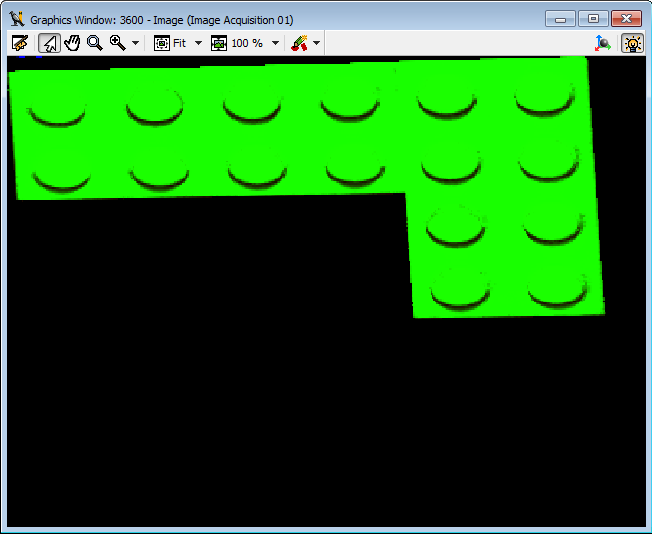
Halcon is now configured for use with the sensor.