GoHMI and GoHMI Designer
GoHMI lets you create flexible human-machine interfaces (HMIs) and provide a custom GUI containing system and inspection metrics. Your HMI can also be touch-enabled. You create and edit HMIs in GoHMI Designer. You can design different layouts for different devices so that, for example, your HMI will adapt to the screen it is being displayed on (a PC monitor, a laptop, a tablet, or a phone), as well as its orientation on the screen.
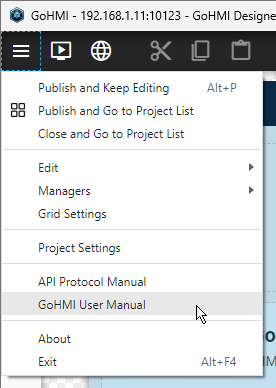
For complete information on creating an HMI app, open the menu in the upper left of the designer, and choose one of the manuals.

|
If you don't see changes you have made in the GoHMI app, or an HMI you've just uploaded, you may need to clear your browser's cache to make it available: the GoHMI is cached for 60 seconds. |
Before using the designer, you must enable GoHMI in GoPxL; for more information, see Enabling and Configuring GoHMI in GoPxL.
|
|
GoHMI and GoHMI Designer only support a single HMI app, called "GoHMI." Also, GoHMI can only be enabled on one PC instance at a time. If you try to start GoHMI another instance, GoPxL displays an error. |
LMI provides a default HMI app with GoHMI that you use as a starting point or simply to explore the capabilities of GoHMI. When you launch GoHMI Designer, the default app loads in the designer.
GoHMI Designer is available in the GoPxL Utilities package (14631-x.x.x.x_SOFTWARE_GoPxL_Utilities.zip), available on LMI's Product Downloads page (https://lmi3d.com/product-downloads/). After you have downloaded the package, unzip it and make note of the folder's location; the shortcut to the designer is in the GoPxL folder.
|
|
GoHMI Designer requires the Microsoft Visual C++ Redistributable package. This package is usually already installed on most PCs. If you are unable to launch HMI Designer, you may need to install this package, which can be downloaded at https://docs.microsoft.com/en-us/cpp/windows/latest-supported-vc-redist?view=msvc-170. |

|
If you decide to run your HMI application on a sensor, instead of on a PC instance or a GoMax NX device, you should not use the HMI data trending functionality. Data trending writes data repeatedly to storage, which can shorten the lifespan of the device's flash memory. Also, if the sensor's storage becomes full, the device may not be able to start. If you need data trending, you should run the HMI on a PC or on GoMax. |
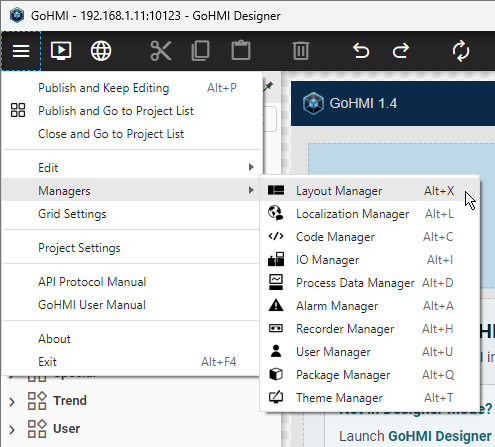
GoHMI Designer organizes the available design functionalities and settings into "managers" and settings pages. After you have opened an HMI app in GoHMI Designer, you can access the managers from the upper left menu in Managers.
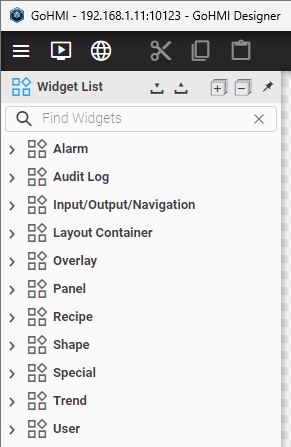
In the Layout Manager, the side panel lets you access the list of widgets (user interface controls such as buttons) and layout containers you use to create your HMI. Click on "Widget List" to open the list. The widgets are grouped into categories. Below, the "Widgets" category is open.
GoHMI application layout development involves the concept of containers. Containers contain widgets or other containers (that is, containers can be nested). Containers can display their contents horizontally (for example, a row of buttons and fields) or vertically (for example, a stack of buttons). By nesting containers and adjusting their alignment, you have complete control over your HMI app's layout and design.
The following provides a high level view of what you need to do to start creating an HMI. The first steps below refer to general acquisition and measurement tool setup, which is described elsewhere in the manual. The remaining steps are described in further details below.
| 1. | Install a sensor or group of sensors. |
For more information, see the installation and networking topics under Installation, Setup & Hardware Overview.
| 2. | Configure the sensor acquisition settings. |
For information on configuring acquisition settings, see Acquire - Alignment and Acquisition.
| 3. | Add and configure measurement and processing tools. |
For more information, see Inspect - Measurement and Processing or the topics for specific tools.
| 4. | (Optional) If your application requires the Gocator communication protocol or any of the industrial protocols, enable and configure these. |
For more information on the protocols available in GoPxL, see Protocols (PLCs and other hardware).
| 5. | Enable the HMI control settings in the Communicate > HMI page using the toggle and configure GoHMI. |
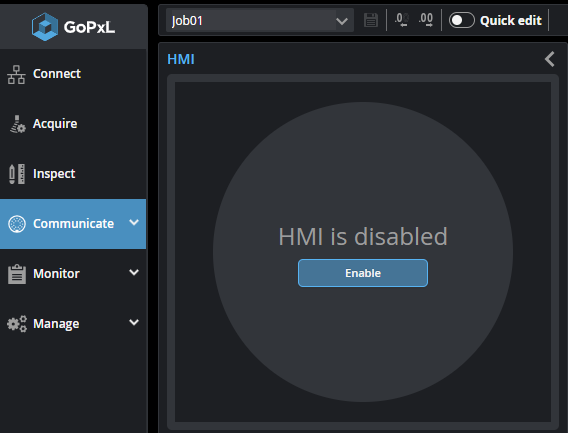
For more information, see Enabling and Configuring GoHMI in GoPxL.
| 6. | Launch GoHMI Designer. |
For more information, see Launching GoHMI Designer.
The following lists the browser requirements of GoHMI apps:
- Chrome 80 (released 04.02.2020)
- Firefox 74 (released 10.03.2020)
- Edge 80 (released 07.02.2020)
- Safari 14 (released 16.09.2019)
- Opera 67 (released 25.02.2020)
Overview of Managers and Settings Pages
For information on the editors (called "managers") you use in GoHMI Designer, see the following table.
Enabling and Configuring GoHMI in GoPxL
This section describes how to enable and configure GoHMI in the GoPxL interface. Before continuing, make sure you have created a sensor system, configured acquisition, and added and enabled the tools and measurements you want to display in the HMI.
To enable and configure GoHMI
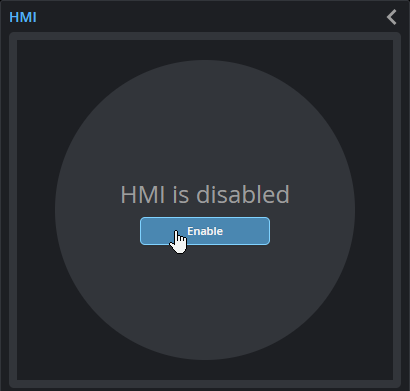
| 1. | On the Communicate page, in the HMI panel, enable the HMI service. |
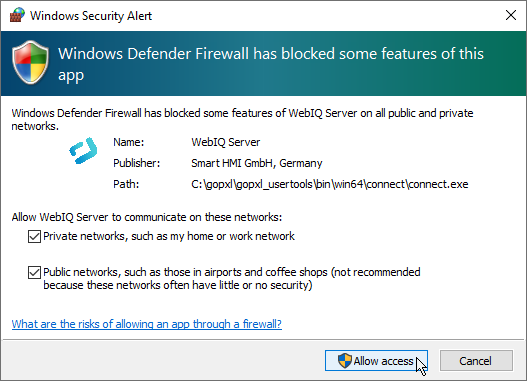
If you are running GoPxL on a PC, a Windows Security Alert referring to WebIQ (the service on which GoHMI Designer runs) may appear. Enable both networks.
The HMI service launches, and the HMI panel displays the following:
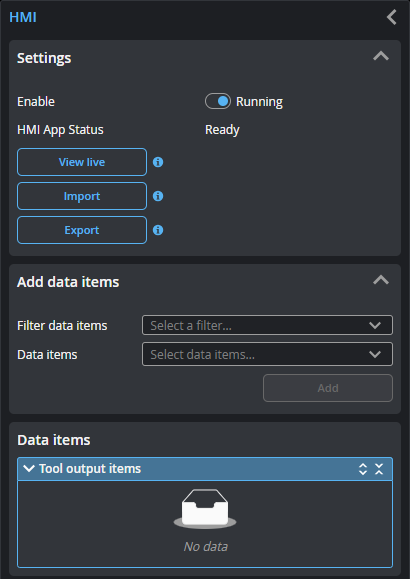
In addition to letting you disable the service and see the HMI app's status, the Settings panel lets you perform various operations.
When the application is running, you can open the HMI app in your browser by clicking the View live button. You can make note of the URL of the HMI in this tab for future use.
Import lets you import an HMI application.
Export lets you export the HMI application currently available on the device (or in the PC instance), to back it up or transfer it to another sensor or PC.
| 2. | If you see "In edit mode" as the HMI status instead of "Ready", you must remove it from the GoHMI Designer. |
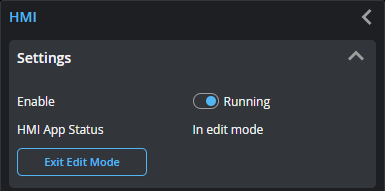
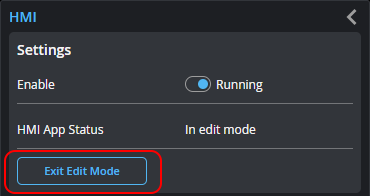
The status In edit mode means that the HMI app is currently loaded into the GoHMI Designer workspace. If you know you have finished making changes in GoHMI Designer, and have closed it without publishing it (to the sensor or PC instance of GoPxL), you can "force" exiting edit mode by clicking Exit Edit Mode. Note that doing this removes any unpublished changes in GoHMI Designer. For information on properly closing the designer and publishing changes, see Publishing Changes or Exiting.
| 3. | (Optional) You can filter the outputs to limit them to only values or decisions. |
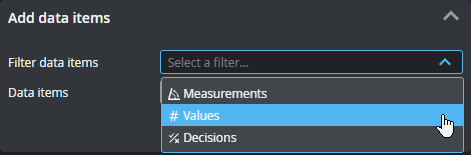
| 4. | In the Add Data Items section, expand the Data outputs drop-down and click an output you want to send to the HMI. |
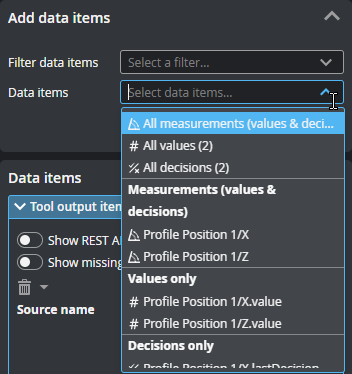
After a few seconds, the output appears in the list of outputs that GoPxL will send to the HMI.
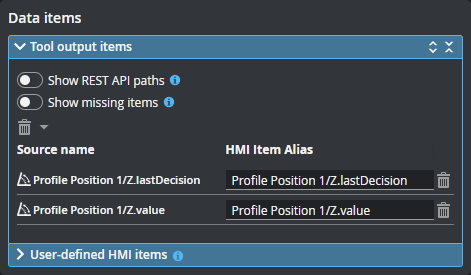
If you don't see the output you want to add in Data items, check that you have enabled it in the measurement tool, on the Inspect page.
| 5. | (Optional) Toggle Show REST API paths to switch between showing the HMI item aliases and REST API of the outputs. |
HMI item aliases are how data outputs appear in GoHMI Designer.
REST API paths are how the data output is represented in the REST API.
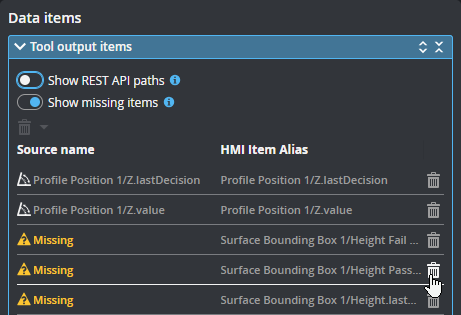
If GoPxL outputs referenced in an HMI are accidentally disabled or renamed in GoPxL, or the tool containing the outputs is removed, a Show missing items toggle will be displayed. Toggle this on to see which outputs are missing, and resolve the issue as required.
Launching GoHMI Designer
After you have enabled the HMI service in GoPxL and configured it by adding the outputs you want to send to the HMI, you can launch GoHMI Designer to create or edit an HMI.
To launch GoHMI Designer
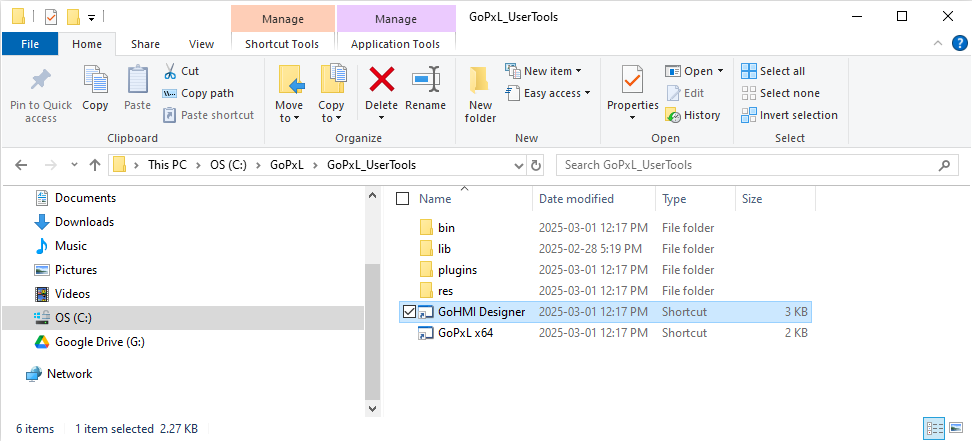
| 1. | Go to where you extracted the GoPxL tools, and double-click the GoHMI Designer shortcut. |
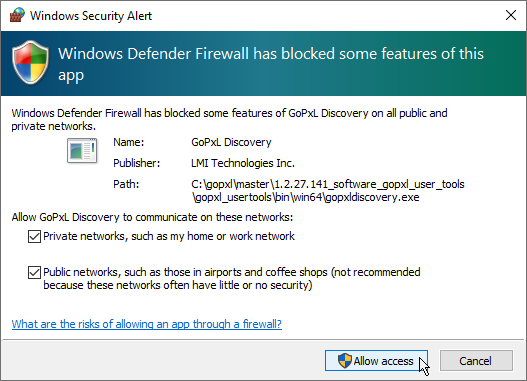
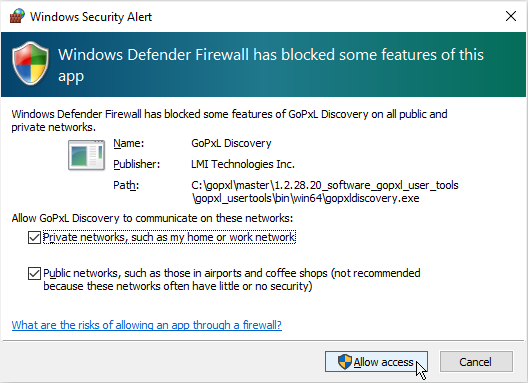
| 2. | (Optional) If a Windows Security Alert opens, enable both networks and click Allow access. |
GoHMI Designer Launcher opens and lists the available instances of GoPxL. In the following, we see two sensors, a PC instance of GoPxL called "GoPxL 1," and a GoMax NX device.
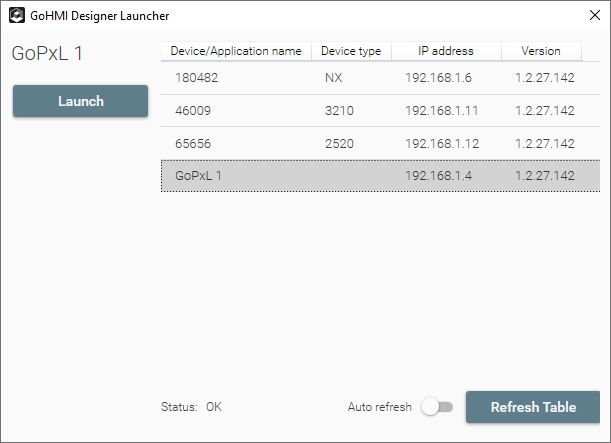
| 3. | In the launcher, select the row of the GoPxL instance for which you want to launch GoHMI Designer and click Launch. |
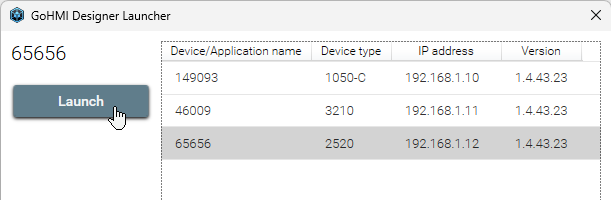
You may need to refresh the table to get the most up-to-date list by clicking Refresh Table. You can toggle Auto Refresh to have the table refresh automatically.
Note that you can only launch one instance of GoHMI Designer at a time.
If a sensor is currently running through a PC instance of GoPxL, its status is "Device is remotely connected." In this case, you can only launch GoHMI Designer from the PC instance through which the sensor is running.

The launcher closes and GoHMI Designer starts.
A Windows Security Alert may appear. If so, allow the designer to communicate over both networks.
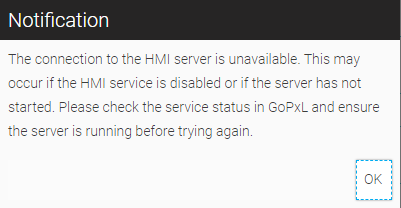
If you see a notification warning that the connection to the server has been interrupted, make sure you have enabled the HMI service in GoPxL. After enabling the service, click OK in the notification. (For more information, see Enabling and Configuring GoHMI in GoPxL.)
| 4. | If necessary, log in to the designer. |
By default, use "gohmi" for the user name and "gohmi" or "gohmi123" for the password.
Opening, Editing, and Saving a Project
This section describes how to open the GoHMI project (called GoHMI), modify it, and save it.
|
|
GoHMI Designer only supports a single HMI application at a time. |
To open a project
| 1. | In the GoHMI Designer main screen, hover the mouse over the GoHMI project and click it. |
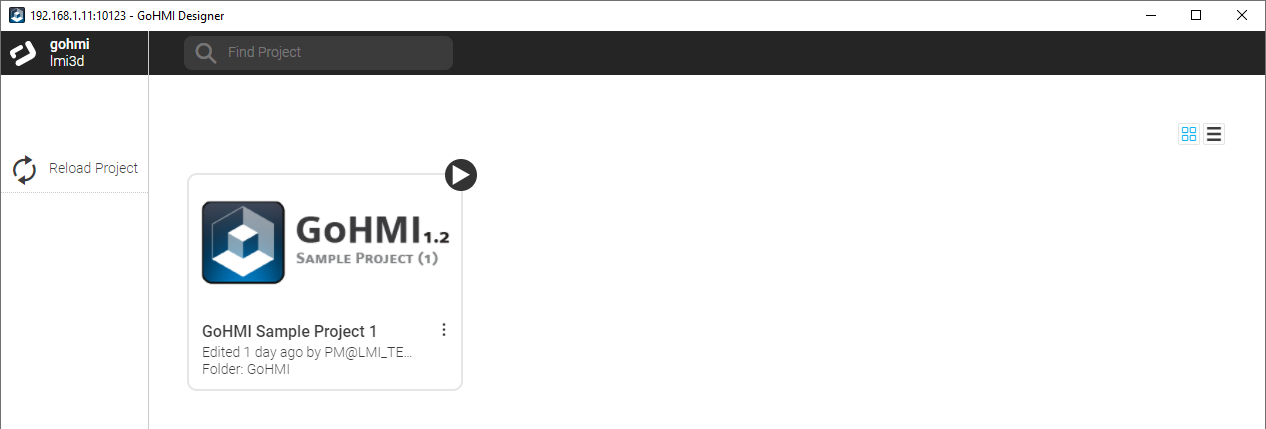
The project opens in the Layout Manager.
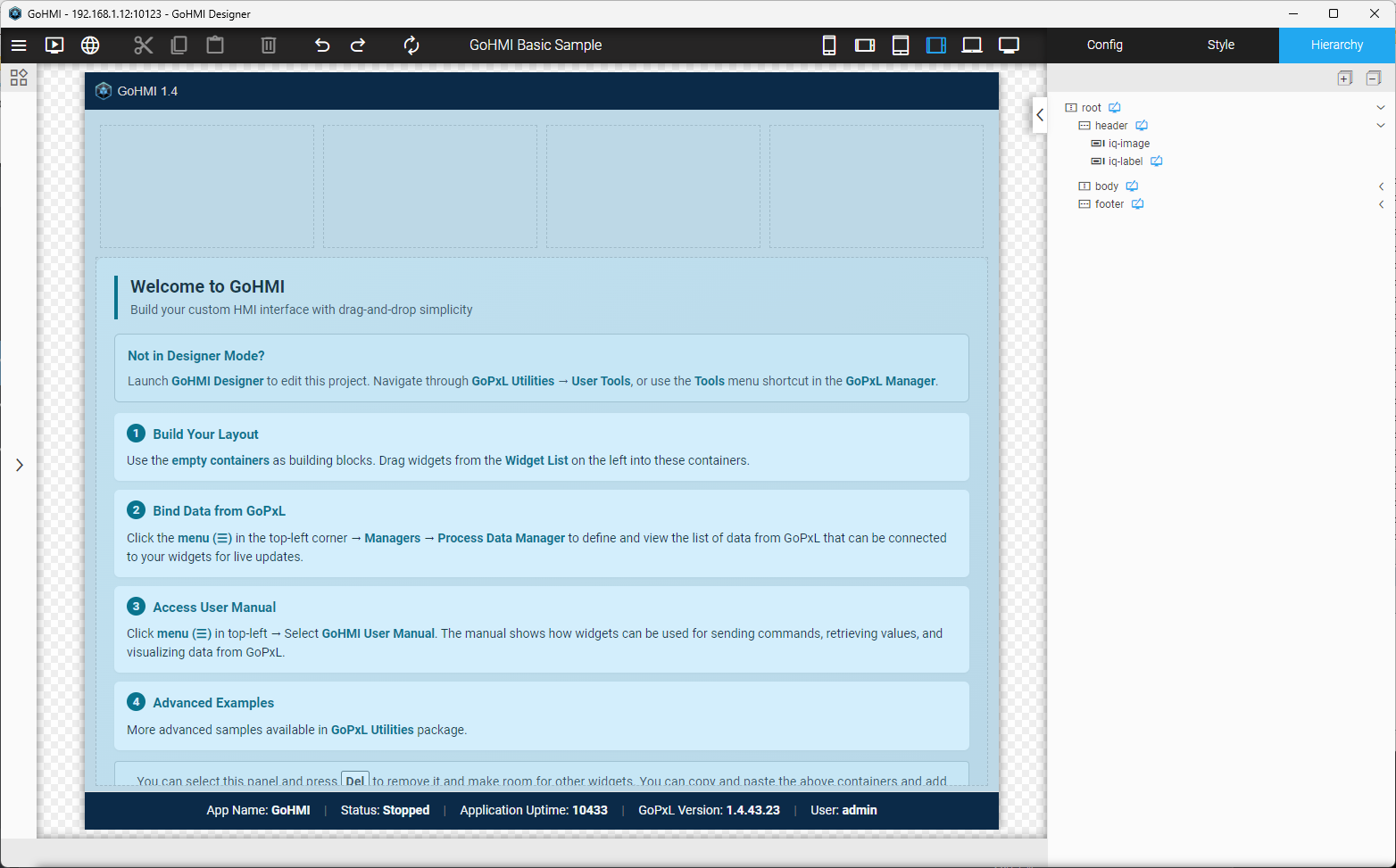
Note that after the HMI loads in GoHMI Designer, in the GoPxL interface the HMI app status becomes "In edit mode."
Publishing Changes or Exiting
As you work on an HMI, the designer automatically saves changes locally. To save changes onto a device (sensor or GoMax) or into a PC instance of GoPxL, you must "publish" the HMI app using one of the two options from the main menu at the upper left of the Designer.
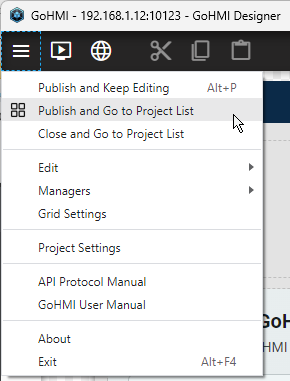
When you have finished working on your HMI, in the menu, you should choose either Publish and Go to Project List or, if you have previously published all changes, Close and Go to Project List. Then, from the project list, close the designer by clicking the Close icon ( ) at the upper right.
In some situations, such as when you have closed the designer without publishing unneeded changes, you can "force" exiting edit mode by clicking Exit Edit Mode in GoPxL, in the Communicate > HMI page. Note that doing this removes any unpublished changes in GoHMI Designer, so make sure it is safe to do this.
Changing Mapped Outputs in GoPxL
Before trying to add or remove measurements at a later date to outputs sent to the HMI application, the HMI App Status in GoPxL must say "Ready". If HMI App Status shows "In edit mode" and if you have unpublished changes in the designer that you want to keep, follow the steps in Launching GoHMI Designer and then, in GoHMI Designer, publish the changes. For more information on publishing changes, see Publishing Changes or Exiting. Otherwise, you can force GoPxL to exit edit mode by clicking Exit Edit Mode, but you will lose any unpublished changes.
Importing and Exporting an HMI
You can import an HMI app from the GoPxL interface. After importing an HMI app, you can then edit it in GoHMI Designer. After you have imported an HMI you can also launch it in a browser from the GoPxL interface by clicking Start and then View live.
|
|
Importing an HMI app overwrites the HMI app currently in GoHMI Designer. Consider exporting the HMI app from the GoPxL interface on a regular basis. |
To back up an HMI you have created or to provide it to someone else, you can export it.
|
|
Imported and exported HMI apps are zip files. |
To import an HMI app
| 1. | Make sure you have backed up the current HMI or that it is OK to overwrite it. |
Importing an HMI app overwrites the app in GoHMI Designer.
For information on exporting an HMI, see To export an HMI app.
| 2. | In the GoPxL interface, click Import. |
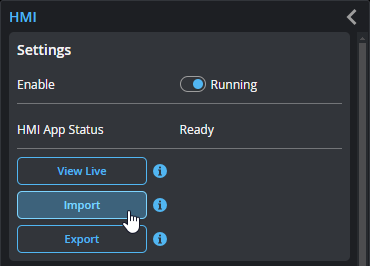
| 3. | In the Open dialog that displays, go to the location of the zipped HMI app project and click Open. |
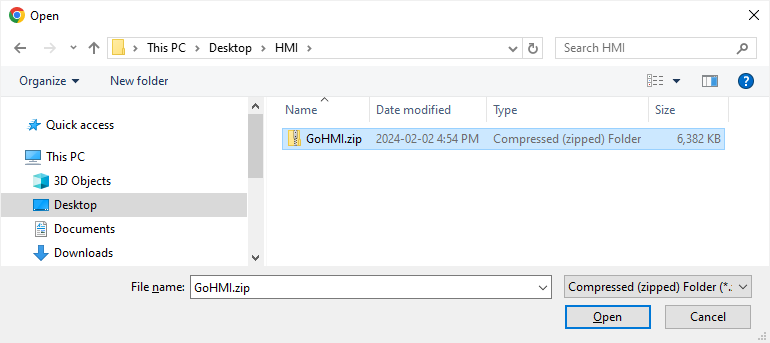
GoPxL imports the HMI app. The app is now available for editing in GoHMI Designer (see See Opening, Editing, and Saving a Project).
If you want to back up your HMI app or import it into another device or PC instance, you export it in GoPxL interface.
-
In the GoPxL interface, click Export.
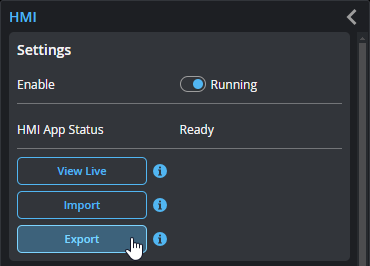
GoPxL downloads the HMI app and saves it as a zip file (GoHMI.zip).
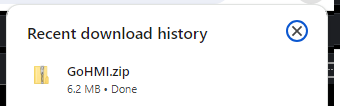
You may need to tell your browser to accept the download (Chrome).