Data Storage Service

The data storage service lets you upload data acquired on sensors and smart cameras to a remote FTP server. On GoMax Smart Vision Accelerators, smart cameras, and GoPxL for PC, data can also be stored to a local folder. Auxiliary data, such as preview images and logs, can also be stored.

On GoMax devices and 2D smart cameras, when the service is configured to save files on the device's internal FTP server (Storage modeSave location is set to Local), the optional timestamp used in file names is based on the internal time of the device, and the time is reset when the device power cycles.

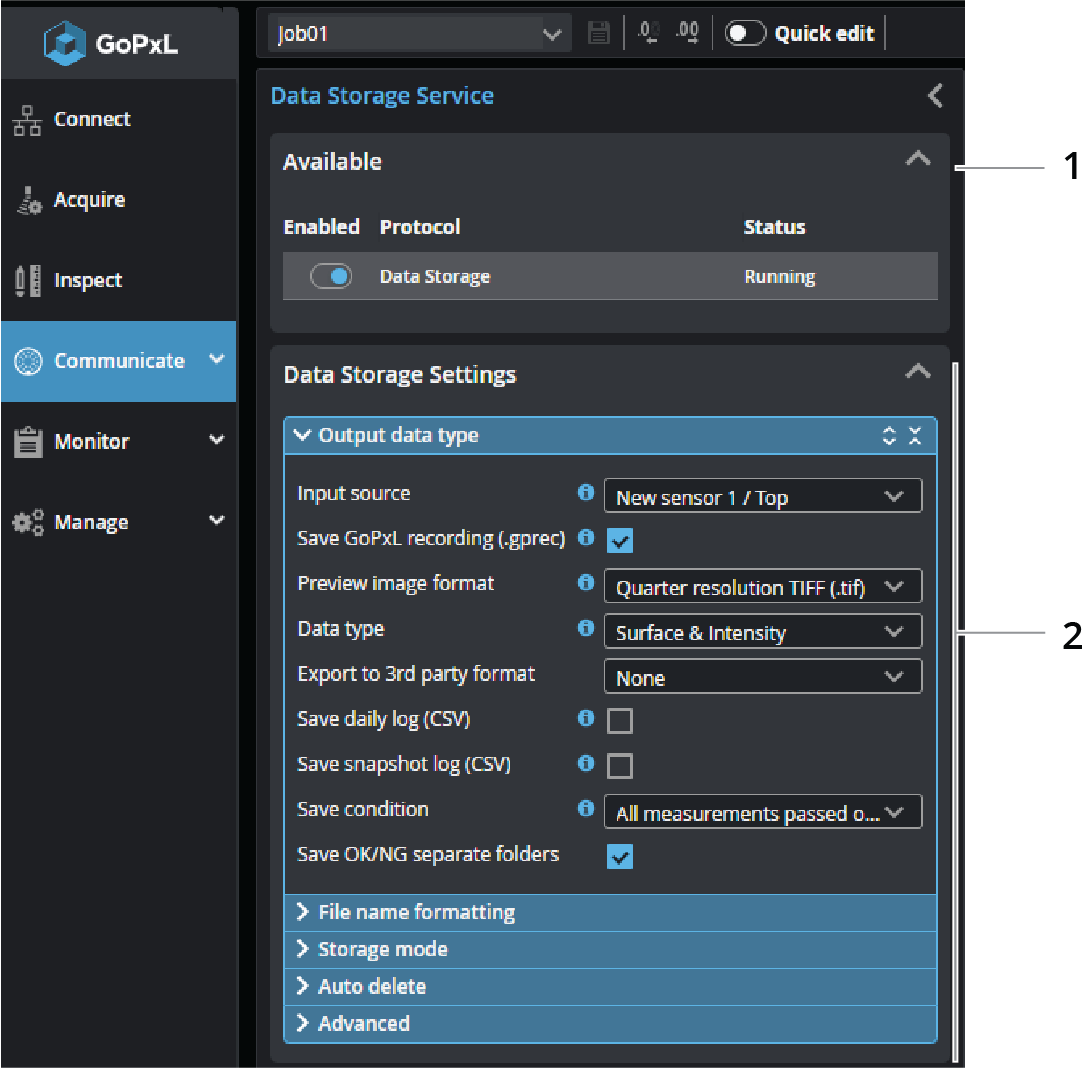
  Element Description

1

Available

Disables the data storage service and displays its status.

2 Data Storage Settings

Lets you configure the data storage service. For more information, see the tables below.

You configure the source, save condition, and types of data the service saves to the FTP server in the expandable Output data type section.
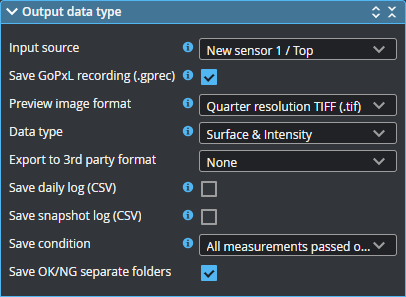
Output data type
Setting Description

Input source

The source from which the tool takes data. The service does not support profile or measurement inputs.

Save GoPxL recording (.gprec) Saves the current frame to a GoPxL recording file.
Preview image format

The format the tool uses when saving a preview image of the current frame. All formats are compressed; some are lossy, others lossless. One of the following:

  • None
  • JPG (lossy, 95% quality)
  • PNG
  • TIFF (16-bit lossless)
  • Quarter resolution TIFF (8-bit lossless)
Data type

The data types for which a preview image is stored.

Export to 3rd party format

Exports the current frame's Surface data to a 3D format. One of the following:

  • None
  • Wavefront OBJ (.obj)
  • PCL PCD (.pcd)
  • STL ASCII (.stl)
  • STL Binary (.stl)
  • MountainsMap SUR (.sur)
Save daily log (CSV) Saves a CVS log every 24 hours. Each time a frame is acquired, GoPxL adds information relative to that frame to this log.
Daily log period The number of days the tool saves a log.
Save snapshot log (CSV) Saves a CSV log for the current frame.
Save condition

The conditions that trigger saving data. For all conditions except "All measurements passed or failed" with Save OK/NG separate folders enabled, frames are saved in the root directory defined in service's Storage modePath on FTP site setting.


One of the following:


All measurements passed or failed (everything)

Always saves a frame, whether measurements pass or fail, but also if you haven't added any measurements.

When this save condition is selected, you can choose whether to save frames in separate "OK" and "NG" folders by enabling Save OK/NG separate folders. When the option is disabled, all files are saved in the folder set in Path on FTP site, in the service's Storage mode section.


All measurements passed

All measurements failed

Only saves a frame if all enabled measurements pass or fail, respectively.


Any measurements failed

Saves a frame if any of the enabled measures fail.


Specific measurement failed

Saves a frame when a selected measurement fails. Select the measurement in the Measurement drop-down.


Specific measurement range

Saves a frame only if the value of the measurement selected in Measurement is in the range defined by Minimum and Maximum; the range is inclusive.

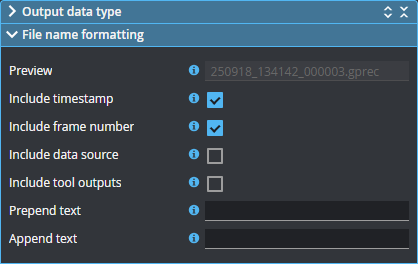
You configure the format of the file names in the expandable File name formatting section.
File name formatting
Setting Description
Preview

An example file name resulting from the configured formatting, such as the following:

prependedText_250918_134142_000003_0.00_1.00_appendedText.gprec

Include timestamp

Includes a timestamp of the following format:

ddmmyyy_hhmmss

Include frame number The six-digit number of the frame. This resets each time acquisition starts.
Include data source

The source selected in Output data typeInput source, using the following format:

{SOURCE_NAME} - {OUTPUT}

For example:

Gocator 0 - Top

Include tool outputs

When this setting is enabled, the measurement value of the measurements you select in Tool outputs selectionMeasurement {n} is added to the file names. Set Tool outputs count to include the measurement values of more than one measurement. Values are separated by an underscore character.

Prepend text

Append text

Text added to the beginning of the file name, or at the end of the file name before the extension.

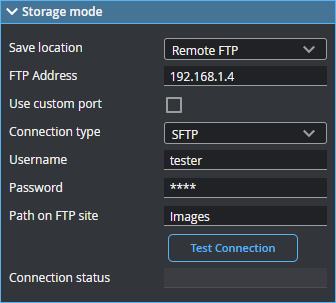
You configure the settings of the remote FTP/SFTP server in the expandable Storage mode section. If you are running GoPxL on a PC, you can also select and configure local storage.
Storage mode
Setting Description
Save location

Where the files are saved. The locations that are available depend on the device you are using or whether you are using GoPxL for PC.


Local

Only available on GoMax devices, GoPxL for PC, and Gocator 2D Smart Cameras.

When you select Local, files are saved to an SFTP server running on the device (GoMax and Gocator 2D Smart Cameras) or the local file system (GoPxL on PC).

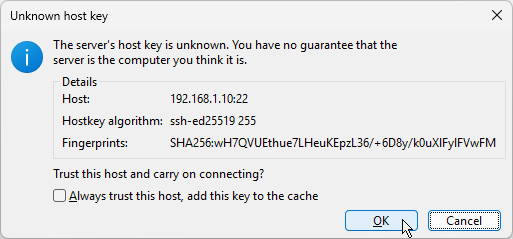
Copy the SFTP server information (IP address of the device, port, and credentials) and connect to Gocator device's SFTP server using an FTP client application such as FileZilla or WinSCP. Note that the client application will probably display a message saying that the SFTP server's host key is unknown. Click OK to accept the connection. Typically you can also choose to always trust the host.


Remote FTP

When you select Remote FTP, the data storage service saves frames to a remote FTP server. You must install and then configure the FTP server on the PC connecting to the device, and fill in the fields in the Storage mode section using the IP address and optional port of the server, the connection type, and the user name and password, so that GoPxL can connect to that FTP server.

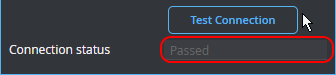
You should test the credentials and connection information by clicking Test Connection. If the connection succeeds, GoPxL displays "Passed" in Connection status.

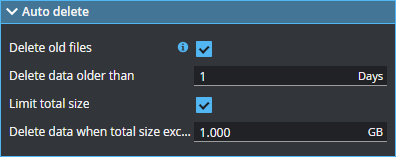
To ensure that the device receiving the frames doesn't run out of space, you can set limits in the expandable Auto delete section.
Storage mode
Setting Description
Delete old files

When this setting is enabled, the service deletes files older than the number of days you specify in Delete data older than.

Limit total size

When this setting is enabled, the service starts deleting files to keep the amount of data stored below the value you set in Delete data when total size exceeds. Before sending data, the service compares the space used with this limit, and deletes older files until the amount of stored data is below the limit. For this reason, the amount of data stored may exceed the limit until the next frame save.

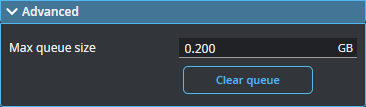
You set advanced settings in the expandable Advanced section.
Storage mode
Setting Description
Max queue size

The maximum queue size for frames. Set this to a higher value if you need to run the device at a high frame rate to help ensure all frames are saved. Note however that the higher the value, the longer frames will continue to be saved after acquisition stops. Therefore, to avoid losing frames, you must keep the remote FTP server running, and the device saving frames powered up, until the frames in the queue have all been saved.

You can clear the queue manually by clicking Clear queue.